
Modern development teams are under constant pressure to deliver software faster without
compromising reliability, security, or quality.
But getting code into production can still involve a surprising amount of manual work.
Developers may need to run tests, build Docker images, push containers to a registry, configure
cloud resources, deploy new versions, and verify that everything is working correctly.
This is where CI/CD automation becomes valuable.
By combining Azure Container Apps with GitLab CI/CD, teams can create an automated
delivery pipeline that takes an application from a Git commit to a running container in Azure.
Instead of treating deployment as a separate task at the end of development, deployment
becomes a repeatable part of the software delivery lifecycle.
In this blog, we’ll explore how GitLab CI/CD can be used to deploy applications to Azure
Container Apps, how Docker and container registries fit into the workflow, how revisions can
support controlled releases, and what teams should consider when building a production-ready
pipeline.
Understanding Azure Container Apps
Microsoft Azure Container Apps is a managed service for running containerized applications and
microservices in Azure.
One of its main advantages is that teams can run containers without having to manage the
underlying infrastructure or operate a full Kubernetes cluster.
Azure Container Apps provides capabilities such as:
- Containerized application hosting
- Ingress and networking
- Environment variables and secrets
- Automatic scaling
- Application revisions
- Traffic management
- Support for APIs and microservices
- Event-driven application scenarios
For teams already working with Docker, GitLab, and cloud-native application architectures,
Azure Container Apps can provide a relatively streamlined way to run containerized workloads
in the cloud.
Why Connect GitLab CI/CD to Azure Container Apps?
GitLab CI/CD allows teams to automate software delivery directly from their GitLab
repositories.
Without automation, deploying a containerized application might involve several manual steps:
Write code → Run tests → Build Docker image → Push image → Log in to Azure →
Deploy → Verify application
Every manual step creates another opportunity for inconsistency or error.
With GitLab CI/CD, these activities can become part of a single automated workflow:
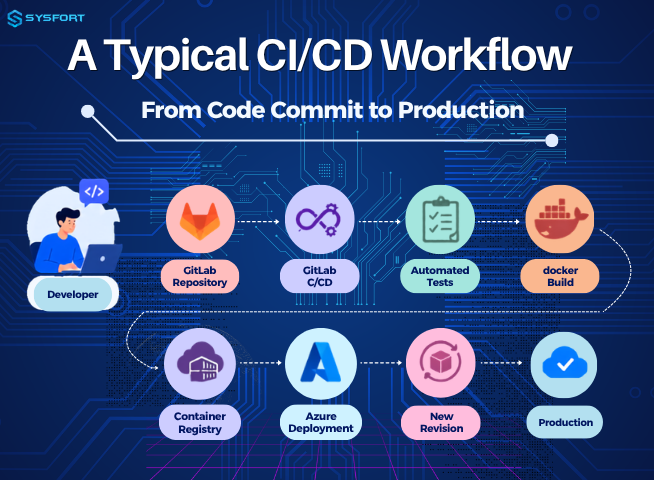
Developer
↓
GitLab Repository
↓
GitLab CI/CD
↓
Automated Tests
↓
Docker Build
↓
Container Registry
↓
Azure Container Apps
↓
New Revision
↓
Health Verification
↓
Production
The result is more than a faster deployment process. It creates a consistent path that can be
repeated for every release.
From Code Commit to Production
Imagine a developer makes a change to an application and pushes it to GitLab.
That single Git event can trigger the entire delivery process.
First, GitLab runs the automated tests. If the tests fail, the pipeline stops.
If everything passes, GitLab builds a Docker image and gives it a unique tag based on the Git
commit. The image is then pushed to a container registry.
Next, the pipeline tells Azure Container Apps to deploy the new image.
Azure creates or updates the appropriate application revision, after which automated health
checks can verify that the application is running correctly.
This creates a clear relationship between the source code and the application running in
production.
Git commit → Docker image → Container registry → Azure revision → Production
application
That traceability becomes extremely valuable when troubleshooting production issues.
Step 1: Containerize the Application
Before GitLab can deploy an application to Azure Container Apps, the application needs to be
packaged as a container.
Docker provides a convenient way to package the application and its dependencies into a
consistent image.
For example, a simple Node.js application might use the following Dockerfile:
FROM node:20-alpine
WORKDIR /app
COPY package*.json ./
RUN npm ci
COPY . .
RUN npm run build
EXPOSE 3000
CMD [“npm”, “start”]
The Dockerfile describes how the application should be built and started.
Once the image has been created, the same image can be used across different environments.
That consistency is one of the biggest advantages of container-based deployment.
Instead of rebuilding an application differently for development, staging, and production, teams
can promote a known container image through the delivery process.
Step 2: Define the GitLab CI/CD Pipeline
GitLab pipelines are configured using a .gitlab-ci.yml file stored in the repository.
A simple pipeline might begin with three stages:
stages:
GitLab pipelines are configured using a .gitlab-ci.yml file stored in the repository.
A simple pipeline might begin with three stages:
stages:
– test
– build
– deploy
This creates a straightforward workflow:
Test → Build → Deploy
However, production environments often require additional controls.
A more comprehensive pipeline could include:
stages:
– test
– security
– build
– deploy
– verify
Now the pipeline can perform security and quality checks before deployment and verify the application afterward.
This is an important shift in mindset: the pipeline becomes a quality gate, not just a deployment mechanism.
What Should a Production CI/CD Pipeline Check?
Depending on the application, a pipeline can include:
- Unit and integration tests
- Code quality analysis
- Dependency scanning
- Security testing
- Docker image scanning
- Configuration validation
- Deployment verification
- Application health checks
The specific checks will vary from project to project, but the principle remains the same: catch problems as early as possible.
Step 3: Build and Version the Docker Image
Once the tests pass, GitLab can build the Docker image.
One important consideration is how the image is tagged.
Using only:
myapp:latest
can make it difficult to determine which exact version of the application is running.
Instead, teams can use a unique tag based on the Git commit SHA:
myapp:8f31c92
Now there is a direct relationship between the source code and the container image.
Git Commit: 8f31c92
↓
Docker Image: myapp:8f31c92
↓
Container Registry
↓
Azure Container Apps
If an issue occurs later, the team can identify the exact image associated with the deployment.
This can make troubleshooting, auditing, release tracking, and rollback procedures much easier.
Step 4: Push the Image to a Container Registry
After building the Docker image, GitLab needs to push it to a container registry.
The registry acts as the storage location for the container images that Azure Container Apps will deploy.
A typical workflow looks like:
Docker Build
↓
Versioned Image
↓
Container Registry
↓
Azure Container Apps
Organizations can use Azure Container Registry or another supported container registry based on their architecture and requirements.
Authentication to the registry should be handled securely. Registry credentials should never be hard coded into the repository or pipeline configuration.
Step 5: Deploy the Container to Azure
Once the image is available in the registry, GitLab CI/CD can trigger the Azure deployment.
For an existing Azure Container App, the Azure CLI can update the application’s container image:
az containerapp update \
–name $CONTAINER_APP_NAME \
–resource-group $RESOURCE_GROUP \
–image $IMAGE_NAME:$CI_COMMIT_SHA
The variables allow the same pipeline structure to be reused across environments.
For example:
- CONTAINER_APP_NAME identifies the application.
- RESOURCE_GROUP identifies the Azure resource group.
- IMAGE_NAME identifies the container image.
- CI_COMMIT_SHA identifies the source-code version.
At this point, the pipeline has moved from source code to an actual Azure deployment.
Step 6: Use Revisions to Control Releases
One of the useful concepts in Azure Container Apps is the revision.
A revision represents a version of an application.
Instead of thinking about deployment as simply replacing the old application with a new one, teams can use revisions to introduce and validate new versions in a controlled way.
For example:
Deploy New Revision
↓
Run Health Checks
↓
Verify Application
↓
Shift Traffic
↓
Monitor
This gives teams an opportunity to validate the new version before exposing it to all users.
Controlled Traffic Shifts
Traffic management can be especially useful when releasing changes that require additional validation.
For example, an organization could initially direct a portion of traffic toward the new revision:
Existing Revision → 90%
New Revision → 10%
After successful verification and monitoring, traffic could be shifted further:
Existing Revision → 0%
New Revision → 100%
The exact implementation depends on the application’s architecture and release requirements, but the underlying idea is simple: deploy first, validate second, expand traffic third.
Step 7: Secure the CI/CD Pipeline
A CI/CD pipeline may have access to Azure resources, container registries, application configurations, and production environments.
That means pipeline credentials need to be protected carefully.
Teams can consider mechanisms such as:
- GitLab protected CI/CD variables
- GitLab masked variables
- Azure managed identities
- Azure Key Vault
- Least-privilege Azure permissions
- Environment-specific credentials
- Federated or short-lived authentication where supported
The principle is straightforward: give the deployment process only the access it needs.
Production deployment credentials should be treated as highly sensitive because anyone who gains control of them could potentially influence production infrastructure.
Step 8: Verify the Deployment
A successful deployment is not the same as a healthy application.
The container may start incorrectly. An application dependency may be unavailable. A configuration value may be missing. An endpoint may return an unexpected response.
That’s why deployment verification should be part of the CI/CD process.
A pipeline could check:
- HTTP response codes
- Application health endpoints
- Revision status
- Container startup status
- Replica health
- Application logs
- Basic application functionality
For example:
curl –fail https://your-application.example.com/health
If the health check fails, the pipeline can stop the release and alert the development or operations team.
Step 9: Monitor the New Revision
Deployment verification should not be the end of the process.
Once a new revision is receiving production traffic, teams should continue monitoring application behavior.
Useful signals include:
- Application availability
- HTTP errors
- Response times
- Container logs
- Replica behavior
- Resource consumption
- Failed requests
- Revision health
Monitoring becomes particularly important during gradual traffic shifts.
If the new revision begins producing unexpected errors, teams can investigate before completing the rollout.
What Does a Production-Ready Pipeline Look Like?
A mature GitLab CI/CD pipeline for Azure Container Apps might look like this:
Code Commit
↓
Automated Tests => Testing validates the application.
↓
Security Checks => Security checks identify potential risks.
↓
Docker Build => The Docker build creates the deployable artifact.
↓
Image Scan
↓
Container Registry => The registry stores the artifact.
↓
Azure Deployment => Azure Container Apps runs it.
↓
New Revision => The revision model provides release control.
↓
Health Verification => Health checks verify the deployment.
↓
Traffic Management. => Traffic management controls exposure.
↓
Monitoring => Monitoring provides visibility after release.
Together, these stages create a software delivery process that is automated from beginning to end.
Best Practices for Azure Container Apps and GitLab CI/CD
When building a production deployment pipeline, a few practices can make a significant difference:
- Use unique container image tags rather than relying exclusively on latest.
- Run tests before deployment to prevent known failures from reaching production.
- Scan dependencies and container images for security vulnerabilities.
- Protect CI/CD credentials using secure secret-management mechanisms.
- Use least-privilege permissions for deployment identities.
- Separate development, staging, and production environments.
- Use Azure Container Apps revisions when controlled releases are appropriate.
- Add automated health checks after deployment.
- Monitor new revisions after they receive traffic.
- Maintain a documented rollback strategy.
- Protect production deployment jobs with appropriate approval controls.
- Maintain traceability between Git commits, container images, and application revisions.
These practices help the pipeline remain manageable as the application and engineering organization grow.
Why Azure Container Apps and GitLab CI/CD Matter
Modern application delivery is no longer just about writing code.
Teams also need a reliable way to test, package, secure, deploy, verify, and monitor that code.
Azure Container Apps provides the managed environment for running containerized workloads, while GitLab CI/CD provides the automation layer that connects source code to deployment.
Together, they can turn a traditionally manual deployment process into a repeatable workflow.
Instead of asking:
“How do we deploy this application?”
the team can establish a standard process:
“Push validated code, let the pipeline build and deploy it, verify the new revision, and monitor the result.”
That consistency becomes increasingly valuable as applications grow and release cycles become shorter.
Frequently Asked Questions
Can GitLab CI/CD Deploy to Azure Container Apps?
Yes. GitLab CI/CD can automate testing, Docker image creation, image publishing, and deployment to Azure Container Apps.
The exact implementation depends on the Azure environment, container registry, authentication method, and application architecture.
How Do I Deploy a Docker Image to Azure Container Apps?
A common approach is to build a Docker image in GitLab CI/CD, assign it a unique tag, push it to a container registry, and then use the Azure CLI to update the Azure Container App.
For example:
az containerapp update \
–name $CONTAINER_APP_NAME \
–resource-group $RESOURCE_GROUP \
–image $IMAGE_NAME:$CI_COMMIT_SHA
The pipeline can then perform automated health checks.
Why Use Docker with Azure Container Apps?
Docker packages an application and its dependencies into a consistent container image.
That image can then be built once and deployed across different environments, helping reduce differences between development, testing, staging, and production.
Why Use Git Commit SHA for Docker Image Tags?
A Git commit SHA creates a direct relationship between source code and the container image.
For example:
Commit: 8f31c92
Image: myapp:8f31c92
This makes it easier to identify which application version is associated with a deployment.
What Are Azure Container Apps Revisions?
Revisions represent different versions of an Azure Container App.
They can be used to deploy new application versions, validate them, manage traffic, and maintain controlled release processes.
How Can I Secure GitLab CI/CD Azure Credentials?
Avoid storing credentials directly in source code or committing them to .gitlab-ci.yml.
Use protected and masked GitLab variables, Azure managed identities, Azure Key Vault, least-privilege permissions, or supported federated authentication mechanisms.
What Should I Check After Deploying Azure Container Apps?
Post-deployment verification can include application health endpoints, HTTP responses, revision status, container startup status, replica health, logs, and basic application functionality.
Final Thoughts
Azure Container Apps and GitLab CI/CD provide a practical foundation for automated container deployments.
The process can be summarized simply:
Code → Test → Build → Scan → Push → Deploy → Verify → Monitor
What makes this approach valuable is not simply the ability to deploy faster. It creates a consistent and traceable process for moving validated code into production.
With versioned Docker images, secure CI/CD authentication, automated testing, Azure Container Apps revisions, health verification, traffic management, and monitoring, teams can build a deployment workflow that scales with both their applications and their development practices.
For organizations moving toward cloud-native development, automating Azure Container Apps deployments with GitLab CI/CD can be an important step toward a more reliable, repeatable, and efficient software delivery lifecycle.
Read More: Azure AI Foundry